
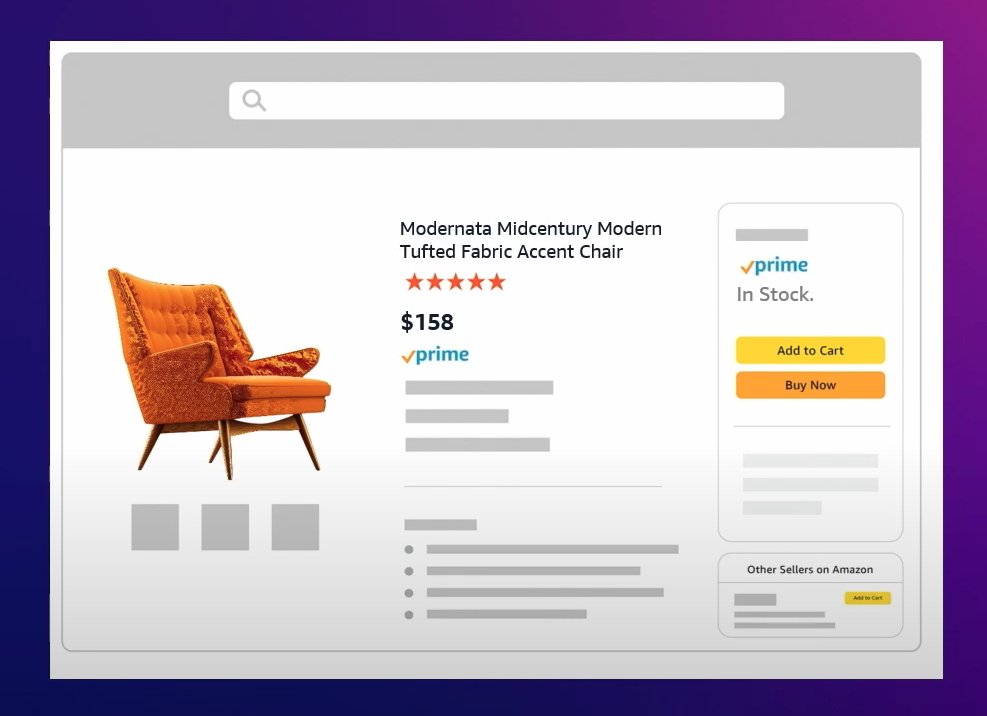
Learn how to change or remove a pricing rule with Automate Pricing
Table of Contents Show
Are you looking to learn how to change or remove a pricing rule using the Automate Pricing tool? Well, you’re in luck! In this post, You’ll learn how to edit a pricing rule, pause, resume, or delete a rule, and even review the price history. The Automate Pricing tool can be a handy resource for adjusting your prices quickly and automatically, ensuring that your offers remain competitive within your set price limits. So if you’re ready to master the art of managing pricing rules, this video is definitely for you. Happy selling in the Amazon store!
What is Automate Pricing?
Automate Pricing is a powerful tool provided by Amazon that allows sellers with a professional selling plan to quickly and automatically adjust their prices. By using automated pricing, sellers can ensure that their offers remain competitive within their set price limits. This tool is especially useful for sellers who want to automate the process of adjusting prices based on market conditions, competitor pricing, or other factors.
Benefits of using Automate Pricing
There are several benefits to using Automate Pricing for your Amazon business:
- Time-saving: Automate Pricing eliminates the need for manual price adjustments by handling the process automatically. This saves you time and allows you to focus on other important aspects of your business.
- Competitive pricing: By using Automate Pricing, you can ensure that your prices remain competitive in the market. The tool allows you to adjust your prices quickly in response to changes in market conditions or competitor pricing.
- Flexible pricing rules: Automate Pricing allows you to set up pricing rules based on your specific requirements. You can set different price limits, discounts, or quantity-based pricing rules to optimize your pricing strategy.
- Effortless management: The Automate Pricing tool provides a user-friendly interface for managing your pricing rules. You can easily edit, pause, resume, or delete pricing rules whenever necessary.
Now that you have an overview of Automate Pricing, let’s dive into how you can change a pricing rule using this tool.
Changing a Pricing Rule
Accessing the Automate Pricing Tools page
To change a pricing rule, you need to access the Automate Pricing Tools page on Seller Central. Here’s how you can do it:
- Select the menu icon in the top left corner of Seller Central.
- Hover over Pricing and select Automate Pricing.
Finding and selecting the rule to be changed
Once you’re on the Automate Pricing Tools page, you need to find and select the pricing rule that you want to change. Here’s how you can do it:
- Review the description of the rule in the Rule summary column.
- Select the drop-down menu in the Action column for the rule and click Edit Rule Parameters.
Editing the rule parameters
After selecting the pricing rule, you can proceed to edit its parameters. Here’s how you can do it:
- If you’re modifying a predefined pricing rule, you can select Edit SKUs. If you have an inactive rule, you can select Set Up.
- Edit the rule parameters based on your requirements. For example, you can add or remove quantity discount tiers and select the percentage off discount for each quantity.
- Once you’re done editing the rule, select Save This Rule.
Saving the rule changes
After making the necessary changes to the rule parameters, you need to save the rule. Here’s how you can do it:
- Select Save This Rule.
- Amazon will apply the repricing rule parameters on all SKUs in the rule.
- If you want to assign more SKUs to the rule or remove any SKUs from the rule, click Proceed to SKU Selection and apply your changes.
By following these steps, you can successfully change a pricing rule using the Automate Pricing tool. Now let’s move on to the next section to learn how to move SKUs to a new pricing rule.
Moving SKUs to a New Pricing Rule
Accessing the Manage SKUs page
To move SKUs to a new pricing rule, you need to access the Manage SKUs page on Seller Central. Here’s how you can do it:
- Select the menu icon in the top left corner of Seller Central.
- Hover over Pricing and select Manage SKUs.
Moving SKUs to a new pricing rule
Once you’re on the Manage SKUs page, you can proceed to move SKUs to a new pricing rule. Here’s how you can do it:
- Select the SKU(s) you want to move to a new pricing rule.
- In the drop-down menu, select the new pricing rule you want to assign the SKUs to.
- Amazon will move the selected SKUs to the new pricing rule.
By following these steps, you can easily move SKUs to a new pricing rule using the Automate Pricing tool.
Pausing or Resuming a Pricing Rule
Accessing the Automate Pricing Tools page
To pause or resume a pricing rule, you need to access the Automate Pricing Tools page on Seller Central. Here’s how you can do it:
- Select the menu icon in the top left corner of Seller Central.
- Hover over Pricing and select Automate Pricing.
Finding and selecting the rule to be paused or resumed
Once you’re on the Automate Pricing Tools page, you need to find and select the pricing rule that you want to pause or resume. Here’s how you can do it:
- Review the description of the rule in the Rule summary column.
- Select the drop-down menu in the Action column for the rule and click Pause or Resume, depending on the current status of the rule.
Pausing or resuming the rule
After selecting the pricing rule, you can proceed to pause or resume it. Here’s how you can do it:
- In the new window that appears, confirm your choice to pause or resume the pricing rule.
- Keep in mind that pausing a rule will temporarily stop the rule from affecting your pricing. Resuming a rule will reactivate the rule and apply the pricing parameters again.
By following these steps, you can easily pause or resume a pricing rule using the Automate Pricing tool.
Deleting a Pricing Rule
Accessing the Automate Pricing Tools page
To delete a pricing rule, you need to access the Automate Pricing Tools page on Seller Central. Here’s how you can do it:
- Select the menu icon in the top left corner of Seller Central.
- Hover over Pricing and select Automate Pricing.
Finding and selecting the rule to be deleted
Once you’re on the Automate Pricing Tools page, you need to find and select the pricing rule that you want to delete. Here’s how you can do it:
- Review the description of the rule in the Rule summary column.
- Select the drop-down menu in the Action column for the rule and click Delete Rule.
Confirming the deletion
After selecting the pricing rule, a new window will appear and prompt you to confirm the deletion. Here’s what you need to do:
- Confirm your choice to delete the pricing rule.
- Keep in mind that once a pricing rule is deleted, you won’t be able to access any past records of the rule.
By following these steps, you can easily delete a pricing rule using the Automate Pricing tool.
Viewing Price History
Accessing the Automate Pricing Tools page
To view price history, you need to access the Automate Pricing Tools page on Seller Central. Here’s how you can do it:
- Select the menu icon in the top left corner of Seller Central.
- Hover over Pricing and select Automate Pricing.
Finding and selecting the SKU to view price history
Once you’re on the Automate Pricing Tools page, you need to find and select the SKU for which you want to view price history. Here’s how you can do it:
- Select the drop-down menu in the Action column for the SKU and choose Edit SKUs.
- Locate the SKU you want to view price history for.
Viewing the price history
After selecting the SKU, you can proceed to view its price history. Here’s how you can do it:
- In the drop-down menu in the Action column for the SKU, choose View Pricing History.
- The response column will list the price changes applied by the Automate Pricing tool, and the trigger column will list the events that influenced them.
- You can also use the date range fields to select the start and end dates for which you want to review pricing changes and reasons.
By following these steps, you can easily view the price history of SKUs enrolled in Automate Pricing.
Reviewing Inactive Listings
Accessing the Manage Inventory page
To review inactive listings, you need to access the Manage Inventory page on Seller Central. Here’s how you can do it:
- Select the menu icon in the top left corner of Seller Central.
- Hover over Inventory and select Manage Inventory.
Reviewing inactive listings
Once you’re on the Manage Inventory page, you can proceed to review your inactive listings. Here’s how you can do it:
- Review the list of listings and identify the inactive ones.
- Note that any pricing rules that apply to an inactive listing will remain paused until you set the listing to active again.
By following these steps, you can easily review your inactive listings using the Automate Pricing tool.
Conclusion
In this comprehensive article, we have covered various aspects of changing or removing a pricing rule using the Automate Pricing tool. We have learned how to edit a pricing rule, move SKUs to a new pricing rule, pause or resume a pricing rule, delete a pricing rule, view price history, and review inactive listings. By utilizing these functionalities, you can effectively manage your pricing strategy on Amazon and ensure that your offers remain competitive within your set price limits. Now, armed with this knowledge, you can confidently navigate the Automate Pricing tool and optimize your prices on Amazon. H
Introduction to Pricing Amazon Products Using Third-Party Apps